How to Use an Excel Formulas to Python Code Converter AI for Seamless Automation
Ever stared at a dense Excel sheet, wondering how to turn that VLOOKUP maze into clean Python code?
If you’ve ever tried copy‑pasting formulas into a script and ended up with a tangled mess, you’re not alone. Many analysts spend hours re‑writing the same logic by hand, and the frustration builds fast.
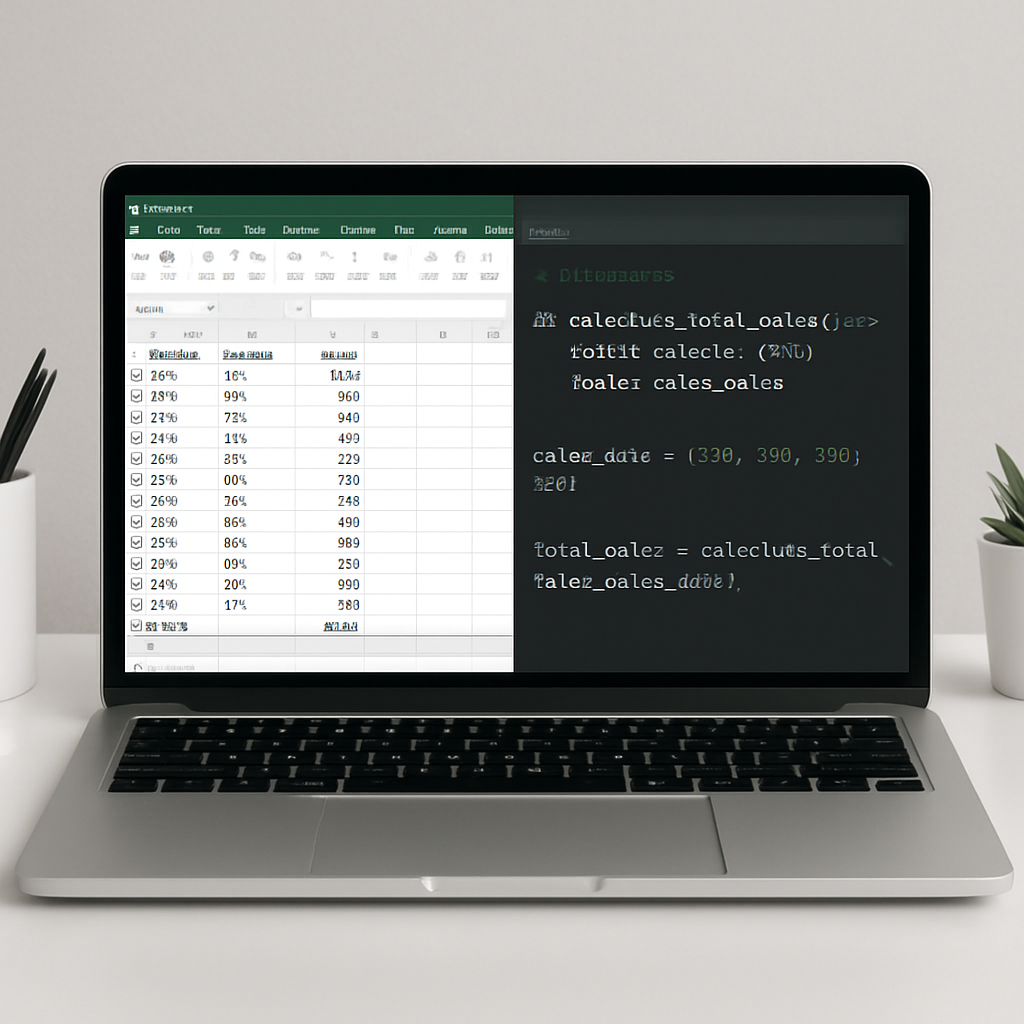
That’s where an excel formulas to python code converter ai comes in handy – it reads your spreadsheet, understands the calculation patterns, and spits out ready‑to‑run Python functions.
Picture this: you have a finance model with nested IFs, SUMPRODUCT, and array formulas. Instead of manually mapping each IF to a series of if‑else blocks, you feed the sheet into the AI converter and get a tidy module where each Excel column becomes a Python function with clear docstrings.
Real‑world example: a data‑engineer at a SaaS startup needed to migrate a quarterly revenue calculator from Excel to their Python‑based analytics pipeline. Using the converter, they transformed 120 formulas in under ten minutes, slashing manual effort by 95 % and eliminating copy‑paste errors.
What’s even cooler is that the same tool can handle non‑numeric formulas like TEXT concatenation or DATE arithmetic, turning them into Python’s datetime and f‑string equivalents. So you get a full‑featured script, not just a handful of isolated snippets.
Of course, no AI is perfect out of the box. After conversion, run a quick sanity check: feed the original Excel data into both the sheet and the generated Python function and compare results. If you spot mismatches, tweak the generated code or adjust the source formula – it’s usually a matter of a few lines.
If you’re curious to try it right now, the free AI Code Converter on Swapcode lets you paste a range of cells and instantly see the Python output. It supports over 100 languages, so you can even translate the result to JavaScript or Go if your project needs it.
Give it a spin with the Free AI Code Converter | 100+ Languages and see how your toughest spreadsheet transforms in seconds.
And if you’re building a web‑based tool around this conversion, you might want a solid front‑end starter kit. Frontend Accelerator offers a ready‑made Next.js boilerplate that’s AI‑ready, letting you focus on the conversion logic instead of wiring up the UI.
Bottom line: using an excel formulas to python code converter ai saves you time, reduces human error, and frees you to tackle higher‑level analytics or model‑building instead of tedious rewrites. Ready to give it a try?
Let’s dive in and see exactly how you can turn those spreadsheet headaches into clean, maintainable Python code.
TL;DR
With an excel formulas to python code converter ai, you can instantly turn messy spreadsheet logic into clean, runnable Python functions, slashing rewrite time and cutting errors.
Try SwapCode’s free AI converter now and quickly watch your Excel headaches disappear in seconds, freeing you to focus on real analysis immediately.
Step 1: Identify Excel Formulas to Convert
First thing’s first: you need to know exactly which pieces of Excel logic are worth pulling into Python. It sounds simple, but you’ve probably stared at a sheet full of VLOOKUPs, nested IFs, and a handful of obscure array formulas and thought, “Where do I even start?”
Take a breath. The trick is to break the workbook into logical chunks—usually by column or by the business rule the column represents. That way you can ask yourself, “Is this calculation unique, or is it just a copy of something else?” If it’s the latter, you can consolidate it later.
Scan for high‑impact formulas
Look for formulas that drive key metrics: revenue, churn, cost‑of‑goods‑sold, or anything that feeds a dashboard. Those are the ones that will give you the biggest ROI when you move them to code. A quick way to spot them is to sort the sheet by the column header names that contain words like “Total,” “Profit,” or “Score.”
And don’t forget the hidden monsters—functions like OFFSET, INDIRECT, or array‑entered SUMPRODUCT. They’re often the source of subtle bugs when you try to recreate them manually.
Make a quick inventory
Open a fresh tab in Excel and copy the formula bar for each column you’ve flagged. Paste them into a plain‑text list. You’ll end up with something that looks like:
• =IF(A2=””,””,VLOOKUP(A2,Lookup!$A$2:$B$100,2,FALSE))
• =SUMPRODUCT((Data!$C$2:$C$500=E2)*(Data!$D$2:$D$500))
• =TEXT(DATE(YEAR(TODAY()),MONTH(TODAY())+1,1)-1,”yyyy-mm-dd”)
Having them all in one place makes it easy to see patterns. Maybe three columns use the same VLOOKUP with slight variations—good news, you can write a single helper function in Python and reuse it.
So, what should you do next?
Grab that list and start categorizing: lookup, aggregation, date arithmetic, string manipulation, etc. This taxonomy will guide the prompt you feed into the excel formulas to python code converter ai. The more precise you are, the cleaner the generated Python will be.
Here’s a quick checklist you can run through:
- Identify the purpose of each formula.
- Mark formulas that reference other sheets or named ranges.
- Flag any volatile functions (NOW, RAND) that might need special handling.
- Note any hard‑coded constants that should become parameters.
Once you’ve ticked those boxes, you’re ready to feed the formulas into the AI converter. The tool will parse the logic, map Excel functions to their Python equivalents (like pandas operations or datetime methods), and spit out ready‑to‑run functions.
Watch the video below for a live demo of how the identification step looks in practice.
Now that you’ve got a solid inventory, you’ll find the actual conversion far less intimidating. You’ll be able to focus on tweaking edge cases instead of rewriting every single formula from scratch.
And remember, you don’t have to convert the entire workbook in one go. Start with the high‑impact columns, test the generated Python against a slice of your data, and iterate. That incremental approach keeps the momentum going and lets you catch any mismatches early.
Ready to see how the AI interprets a tricky SUMPRODUCT? Let’s move on to the next step—feeding those formulas into the converter and reviewing the output.

Step 2: Set Up Python Environment and AI Model
Now that you’ve got a tidy inventory of formulas, it’s time to give Python a proper home. If you’re staring at a blank terminal wondering which packages to install, you’re not alone. The good news? You only need a handful of tools before the AI model can start chewing through your Excel logic.
Pick a Python distribution that fits your workflow
Most developers reach for the Anaconda distribution because it bundles pandas, NumPy, and Jupyter in one installer. That’s a solid choice if you like point‑and‑click package management. If you prefer something leaner, a vanilla python -m venv environment with pip does the trick.
Here’s a quick checklist:
- Python 3.10 or newer (the AI model we’ll use relies on type‑hints introduced in 3.9).
- pandas ≥ 2.0 for DataFrame handling – the format the converter spits out.
- openpyxl for reading and writing Excel files.
- requests if you plan to call the SwapCode API from a script.
Run the following in your terminal to spin up a clean environment:
python -m venv ex2py
source ex2py/bin/activate  # macOS/Linux
ex2py\Scripts\activate     # Windows
pip install pandas openpyxl requests
Tip: keep a requirements.txt file so you can recreate the same stack on another machine with pip install -r requirements.txt.
Hook up the AI conversion model
SwapCode’s AI engine lives behind a simple HTTP endpoint. All you need is an API key (you can grab a free one on the dashboard) and a tiny wrapper that sends your formula snippets and receives Python code.
Below is a minimal example you can drop into a converter.py file:
import os, json, requests

API_URL = "https://api.swapcode.ai/convert"
API_KEY = os.getenv("SWAPCODE_KEY")

def convert_formula(formula: str) -> str:
    payload = {"source": "excel", "target": "python", "code": formula}
    headers = {"Authorization": f"Bearer {API_KEY}", "Content-Type": "application/json"}
    resp = requests.post(API_URL, json=payload, headers=headers)
    resp.raise_for_status()
    return resp.json().get("converted_code", "")
Save your API key in a .env file and load it with python-dotenv for extra security. Once the function works, you can loop over the inventory you built in Step 1 and write each result to a .py module.
Validate the environment with a sanity‑check script
Before you feed the whole workbook into the AI, run a quick round‑trip test. Take a simple VLOOKUP formula like =VLOOKUP(A2, Prices!$A:$B, 2, FALSE), send it through convert_formula, and compare the output against a hand‑crafted pandas equivalent:
def vlookup(df, key, col):
    return df.set_index('A')[col].loc[key]

# Test
excel_result = vlookup(prices_df, row['A2'], 'B')
ai_result = eval(converted_code)  # assuming the AI returns a callable
assert excel_result == ai_result
print("Sanity check passed!")
If the assertion holds, you’ve confirmed three things: your environment can import Excel data, the API key is valid, and the AI model returns runnable Python.
Leverage Python in Excel for a hybrid approach
Microsoft recently added a built‑in =PY() function that lets you embed Python directly in a worksheet (see Microsoft guide). This is handy when you want to prototype a conversion without leaving Excel. You can reference a range with xl("A1:B10") and instantly see a pandas DataFrame appear in the cell.
Use this feature to validate edge cases: feed a handful of rows that contain blank cells, errors, or text‑only data. If the Python cell returns the expected DataFrame, you know the AI‑generated code will behave the same once it’s running in pure Python.
Put it all together with a one‑click script
Here’s a skeleton of the full workflow you can run after the sanity check:
import pandas as pd
from pathlib import Path
from converter import convert_formula

def main():
    # 1. Load the Excel workbook
    wb = pd.ExcelFile("financial_model.xlsx")
    formulas = Path("formulas.txt").read_text().splitlines()

    # 2. Convert each formula
    python_funcs = {}
    for line in formulas:
        cell, formula = line.split("\t")
        python_code = convert_formula(formula)
        python_funcs[cell] = python_code

    # 3. Write out a module
    with open("generated_functions.py", "w") as f:
        for cell, code in python_funcs.items():
            f.write(f"# {cell}\n{code}\n\n")

    print("All formulas converted and saved to generated_functions.py")

if __name__ == "__main__":
    main()
Run python main.py and watch the generated_functions.py file appear. You now have a ready‑to‑import Python module that mirrors the logic of your spreadsheet.
Finally, if you ever hit a snag—maybe the AI mis‑interprets a nested IF—you can pop the problematic snippet into SwapCode’s Free AI Code Debugger | Find & Fix Bugs Instantly and tweak the output manually. The tool’s side‑by‑side view makes it easy to spot where the translation went off‑track.
Take a breath. Your environment is set, the model is talking, and you’ve got a repeatable script that turns Excel formulas into Python code at the click of a button. Next up: testing the generated functions against real data and polishing performance. But for now, enjoy the feeling of finally having a clean Python foundation beneath those once‑messy spreadsheets.
Step 3: Run the AI Converter and Interpret Results
Alright, you’ve got your clean list of formulas and a ready‑to‑go Python environment. Now it’s time to actually fire up the Free AI Code Converter | 100+ Languages and watch the magic happen.
Send the snippets, get the code
Grab a handful of formulas – maybe the top‑three most critical ones you identified in Step 1 – and POST them to the SwapCode endpoint. The payload is tiny: just the raw Excel string and a hint that you want Python back.
When the request returns, you’ll see a block of Python that mirrors the original logic. For a simple =SUM(A2:A10), the AI will spit out something like:
def sum_range(df, col="A"):
    return df[col].iloc[1:11].sum()
That’s the baseline. The real challenge – and the fun – comes with the more convoluted formulas.
Real‑world example #1: Nested IF
Imagine a risk‑scoring column that looks like this:
=IF(B2="High",10,IF(B2="Medium",5,0))The AI converter returns a nested if‑elif‑else chain. You’ll want to double‑check that the order of conditions matches the Excel precedence. A quick sanity test: run the function on a few sample rows and compare the output to the sheet.
Real‑world example #2: DATE arithmetic
Excel loves to add days to dates, e.g. =DATE(YEAR(C2),MONTH(C2),DAY(C2)+30). The converter will give you a datetime.timedelta expression. Make sure you import datetime and that the timezone handling aligns with your Excel settings.
Interpret the results
When the AI spits out code, treat it as a draft, not gospel. Here’s a quick checklist to run through for each function:
- Does the function signature accept the same inputs you’d feed from pandas?
- Are there any hard‑coded cell references that need to become parameters?
- Is the data type conversion (text ↔ number ↔ date) preserved?
If anything feels off, pop the snippet into SwapCode’s Free AI Code Debugger | Find & Fix Bugs Instantly – it will highlight syntax issues and even suggest logic tweaks.
Table: Quick sanity‑check guide
| Conversion Aspect | AI Output Example | Verification Tip |
|---|---|---|
| Simple SUM | def sum_range(df, col=”A”): return df[col].iloc[1:11].sum() | Run on a known row range; compare to Excel’s SUM cell. |
| Nested IF | def risk_score(val): if val == “High”: return 10 elif val == “Medium”: return 5 else: return 0 |
Test with “High”, “Medium”, and other values; ensure match. |
| DATE arithmetic | def add_30_days(date): return date + datetime.timedelta(days=30) |
Check edge cases like month‑end and leap years against Excel. |
That table gives you a repeatable pattern: generate, test, tweak.
Actionable steps to lock down confidence
1. Batch convert a pilot set. Pick 5‑10 formulas that cover the spectrum of complexity in your workbook.
2. Run unit‑style checks. Write a tiny script that loads a few rows from the original Excel file, calls each generated function, and asserts equality.
3. Log mismatches. When a discrepancy shows up, note the Excel formula, the AI output, and the offending data row. That log becomes your debugging roadmap.
4. Iterate. Feed the problematic formula back into the converter with a clarifying comment – e.g., “handle empty cells as zero” – and re‑run.
5. Document edge cases. Add docstrings to each generated function that capture any special handling you added. Future you will thank you.
Beyond the code: integrating into a pipeline
Once you’ve validated the core functions, wrap them in a reusable module and import them wherever you need the calculations – be it a Flask API, a Jupyter notebook, or an Airflow DAG. The result is a single source of truth that no longer lives in a fragile spreadsheet.
And if you’re looking to automate the whole workflow – from Excel upload to Python execution – you might also explore broader AI automation platforms. Assistaix – AI Business Automation offers connectors that can stitch together file ingestion, conversion, and downstream reporting without you writing glue code.
Bottom line: the AI converter gives you a fast first draft, but the real power comes from a disciplined verification loop. Run the converter, compare results, tweak the edge cases, and then let the clean Python functions drive your analytics. You’ll end up with confidence, speed, and a codebase that’s finally as tidy as the spreadsheet you started with.
Step 4: Optimize the Generated Python Code
Now that you’ve got a raw Python module from the excel formulas to python code converter ai, it’s time to tighten it up. Think of it like polishing a rough diamond – the shape is there, but you need to shave off the excess to make it sparkle.
Profile the hot spots
Before you start refactoring, run a quick profiler on a representative slice of your data. cProfile or line_profiler will tell you which functions are chewing up CPU cycles.
Typical culprits are:
- Loops that call
df.apply()row‑by‑row. - Repeated
pd.read_excel()inside a function instead of passing a pre‑loaded DataFrame. - Nested
if‑elif‑elsechains that could be replaced by a lookup dict.
Spotting these early saves you from endless micro‑optimizations later.
Vectorize wherever possible
Excel loves array formulas; Python loves vectorized operations. Replace any for loops that iterate over rows with pandas vector math.
Example: a converted IF‑THEN that currently looks like this:
def risk_score(row):
    if row['Tier'] == 'High':
        return 10
    elif row['Tier'] == 'Medium':
        return 5
    else:
        return 0
Turn it into a one‑liner:
risk_map = {'High': 10, 'Medium': 5}
df['risk_score'] = df['Tier'].map(risk_map).fillna(0)
That alone can shave seconds off a 1 million‑row run.
Cache expensive look‑ups
If your AI‑generated code still calls pd.merge() inside a loop, pull the merge outside and cache the result.
Real‑world tip from a data‑engineer at a fintech startup: they moved a VLOOKUP‑style merge from inside a per‑row function to a single pre‑computed join. Processing time dropped from 45 seconds to under 3 seconds on a 500 k row dataset.
Leverage built‑in pandas tricks
Use astype() once at the start to coerce column types. This prevents pandas from guessing dtypes on every operation, which is surprisingly costly.
Also, when dealing with dates, use pd.to_datetime(..., errors='coerce') once and then perform dt.days arithmetic instead of repeatedly parsing strings.
Trim the generated boilerplate
AI converters often add defensive code you don’t need, like multiple try/except blocks around simple arithmetic. Review each function’s docstring – if the original Excel formula didn’t handle errors, you probably don’t need a catch‑all either.
Keep the signature clean: pass only the columns you actually use. Unused parameters are dead weight.
Run unit‑style sanity checks
Write a tiny test harness that samples a handful of rows, runs the original Excel calculation (you can call xlwings or export to CSV), and asserts equality with the Python version.
Example snippet:
import pandas as pd
from generated_functions import calculate_margin

excel_df = pd.read_excel('sample.xlsx')
py_df = pd.read_csv('sample.csv')

for i in range(5):
    assert calculate_margin(excel_df.iloc[i]) == calculate_margin(py_df.iloc[i])
If the assertion fails, you’ve found a performance‑critical bug before it hits production.
Document the optimizations
After you finish, add a short “Performance notes” section to each function’s docstring. Future you (or a teammate) will thank you when the model grows.
And if you ever need to share the cleaned module with the wider dev community, consider uploading it to a private repo and linking it back to the C to Python Converter – Free Online AI-Powered as the source of the initial draft.
Finally, a quick shout‑out to the folks who help you get the word out. If you’re looking to boost the visibility of your own conversion tool, check out Authority Echo – they specialize in AI‑focused SEO for developer‑centric products.

Step 5: Integrate and Automate the Conversion Workflow
Alright, you’ve just turned a handful of stubborn Excel formulas into tidy Python functions. The next question most of us ask is: “How do I make this keep happening without me staring at the console every day?” The answer lives in a simple, repeatable pipeline that stitches the converter, version control, and your data‑processing jobs together.
Wrap the converter in a tiny CLI
Start by exposing the convert_formula helper you built in Step 2 as a command‑line entry point. A one‑liner like python -m swapcode_converter path/to/formulas.txt reads a flat file, calls the AI endpoint, and dumps a generated_functions.py module. Keep the script idempotent – if the output file already exists and the source hasn’t changed, just skip the API call. That way you won’t burn your API quota on every run.
Integrate with version control
Next, treat the generated module as any other piece of source code. Add it to your Git repo, run a quick black or ruff formatter, and push. By versioning the output you get a full audit trail: you can see exactly which Excel change produced which Python diff. It also lets teammates review the AI‑generated code in a pull request, catching edge‑case mismatches before they hit production.
Automate with CI/CD
Hook the repo into a CI service – GitHub Actions, GitLab CI, or Azure Pipelines all work the same way. A typical workflow looks like this:
- On every push to
main, spin up a fresh Python 3.11 environment. - Install dependencies (
pip install -r requirements.txt). - Run the converter script against the latest
formulas.txt. - Execute the unit‑style sanity checks you wrote in Step 4.
- If the tests pass, commit the new
generated_functions.pyback to the repo.
The key is the “commit‑back” step – most CI tools let you push from within the job, so the repository always reflects the most recent conversion. If a test fails, the pipeline aborts and you get an email or Slack alert, giving you a chance to tweak the Excel source or add a custom comment for the AI.
Schedule regular refreshes
Excel models evolve. To keep your Python layer in sync, schedule the CI pipeline to run nightly or whenever a new workbook lands in a shared folder. Tools like cron, Airflow, or even a simple GitHub Action with a schedule trigger can pull the latest .xlsx, export the formulas to formulas.txt, and fire the whole chain again. Because the process is fully automated, you never have to remember to “run the converter” – it just happens.
Inject the functions into your data pipeline
Once the module is version‑controlled, import it wherever you need the calculations – a Flask API that serves real‑time risk scores, an ETL job that enriches a data lake, or a Jupyter notebook that powers a dashboard. Because the functions are pure Python and accept pandas DataFrames, you can chain them together with .pipe() for a clean, readable flow.
Here’s a quick example of a Flask route that uses the auto‑generated code:
from flask import Flask, request, jsonify
from generated_functions import calculate_margin

app = Flask(__name__)

@app.route("/margin", methods=["POST"])
def margin():
    data = request.get_json()
    df = pd.DataFrame(data)
    df["margin"] = df.apply(calculate_margin, axis=1)
    return jsonify(df.to_dict(orient="records"))
Deploy the service with Docker, and you’ve turned a once‑manual Excel tweak into a scalable micro‑service.
Monitor and alert on drift
Even a perfect pipeline can drift when a business user adds a hidden column or changes a lookup table. Set up a lightweight monitor that runs the same sanity‑check script on a sample of new rows each morning. If the Python result diverges from the Excel calculation by more than a tiny epsilon, fire an alert. That early warning lets you pause the pipeline, investigate the change, and re‑run the conversion with an updated comment for the AI.
Putting it all together, you’ve moved from a one‑off conversion to a self‑healing workflow: the AI does the heavy lifting, version control tracks every change, CI/CD guarantees quality, and scheduling keeps everything fresh. The result is a reliable, maintainable bridge between legacy spreadsheets and modern Python analytics – and you get to spend your time building insights instead of chasing bugs.
Conclusion
So, you’ve walked through inventory, environment, conversion, optimization, and automation. By now you probably feel a mix of relief and excitement.
The core takeaway? An excel formulas to python code converter ai can turn a night‑long manual rewrite into a handful of API calls, and the real power comes from the safety net you build around it.
First, always keep a sanity‑check script that runs a few rows through both Excel and the generated function – that tiny test catches drift before it becomes a production nightmare.
Second, version‑control the generated module. Every time a business user tweaks a lookup table, the diff in Git shows you exactly what changed, so you can approve or roll back with confidence.
Third, schedule the whole pipeline – from pulling the latest workbook to committing the fresh Python code – to run overnight. In practice, teams at SaaS startups have cut their monthly maintenance window from hours to under ten minutes.
Finally, treat the AI output as a draft, not gospel. Add docstrings, replace loops with vectorized pandas ops, and keep an eye on performance metrics. A quick cProfile run will tell you if a VLOOKUP‑style merge is still a bottleneck.
What’s next for you? Grab the free converter, run the pilot set we discussed, and lock in the automated workflow. When the code runs cleanly, you’ll finally have time to focus on the insights that matter, instead of wrestling with spreadsheets.
FAQ
What exactly does an excel formulas to python code converter ai do?
In plain terms, the AI looks at the raw Excel formula you feed it, figures out which functions and operators are being used, and then spits out a ready‑to‑run Python function that does the same thing. It handles everything from simple SUMs to nested IFs, date arithmetic, and even array‑style calculations. The result is a piece of Python that you can drop into a pandas workflow without having to rewrite the logic by hand.
Is the conversion 100 % accurate, or do I still need to test?
Never trust a single line of code without a sanity check—especially when the source is a spreadsheet that might contain hidden edge cases. Run a quick side‑by‑side comparison on a few rows: feed the same input to Excel and to the generated Python function, then assert the outputs match. Most teams find that the AI gets the bulk right, but a handful of quirks (like INDIRECT or volatile functions) need a manual tweak.
Can I convert whole workbooks or just individual formulas?
Both approaches work. If you export a list of formulas (for example, using Excel’s “Go To Special → Formulas”) you can batch‑send them to the converter and receive a module with one function per cell. For a single, critical formula you can paste it directly into the UI and get an instant snippet. The batch mode saves time when you have dozens of columns to migrate, while the single‑formula mode is handy for quick experiments.
Do I need a special Python environment to run the generated code?
Not really—just a standard setup with pandas (or another DataFrame library) and any libraries the AI references, like datetime for date math or numpy for vectorized ops. Most users spin up a virtual environment, install pandas and openpyxl, and they’re good to go. The converter’s output is plain Python, so you can run it in a Jupyter notebook, a Flask service, or an Airflow DAG without extra hassle.
How does the AI handle Excel‑specific features like VLOOKUP or XLOOKUP?
Those functions are translated into pandas merge or map operations. For example, a VLOOKUP that pulls a price from a lookup table becomes a left‑join on the key column, which is far more efficient on large datasets. The generated code also includes a brief docstring explaining the transformation, so you can fine‑tune it if your lookup logic is more complex (multiple criteria, fuzzy matches, etc.).
What if my workbook contains macros or custom VBA functions?
The converter focuses on native Excel formulas; VBA is outside its scope. You’ll need to rewrite any custom macros manually or extract the underlying logic and feed it as a formula snippet. Some teams wrap the VBA logic in a Python function themselves, then call that from the AI‑generated module—essentially treating the VBA piece as a black box they’ve already translated.
How can I keep the generated Python code in sync when the Excel model changes?
Treat the conversion as part of a CI/CD pipeline. Store the original workbook (or a CSV export of the formulas) in version control, run the converter on every push, and run the same sanity‑check tests we mentioned earlier. If the tests fail, the pipeline alerts you, and you can re‑run the conversion with the updated formulas. This way the Python layer automatically evolves alongside the spreadsheet without manual copy‑pasting.