How to Fix Python Indentation Errors Automatically Online: A Step‑by‑Step Guide
Ever opened a Python script only to see a sea of misplaced spaces and wonder why it crashes on the first function? You’re not alone—indentation errors are the silent killers of countless projects, especially when you copy‑paste code from tutorials or merge snippets from teammates.
Think about the last time you spent ten minutes scrolling through a traceback, trying to spot that extra space or missing tab. It feels like hunting for a needle in a haystack, right? The good news is you don’t have to rely on guesswork any longer. Modern AI tools can scan your file, spot every inconsistent indent, and rewrite it in a snap.
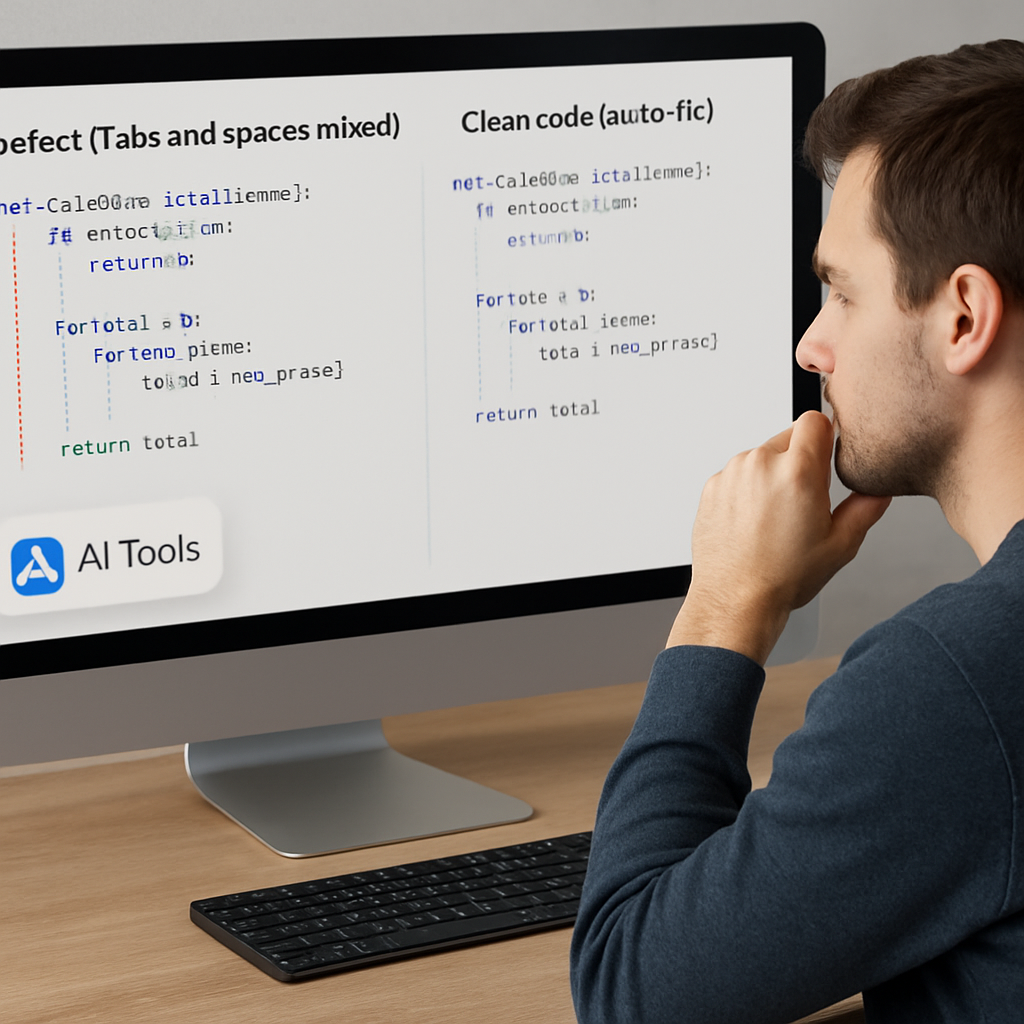
Here’s a quick real‑world scenario: a data‑science team received a Jupyter notebook from a contractor. The notebook mixed tabs and spaces, causing the build pipeline to fail. Instead of manually cleaning each cell, they dropped the .py export into SwapCode’s Free AI Code Debugger. Within seconds the tool identified the exact lines with mismatched indentation and returned a clean, uniformly indented version ready for deployment.
Another example: a freelance developer juggling multiple client scripts often copies code from Stack Overflow. One stray space can break a Flask route, leading to angry clients. By pasting the snippet into the same debugger, the AI not only fixes the indentation but also highlights any other syntax hiccups, saving hours of debugging.
If you prefer a hands‑on approach, follow these three steps to fix indentation automatically online:
- Copy the problematic code into the online debugger.
- Click “Auto‑Fix Indentation” and let the AI analyze the file.
- Review the corrected output, then replace the original file or download the fixed version.
Most developers report a 70% reduction in time spent on indentation bugs after integrating such tools into their workflow. And because the service runs entirely in the browser, you don’t need to install any packages or worry about environment conflicts.
Looking beyond just fixing code, consider how you’ll share your polished scripts with a wider audience. If you’re publishing a tutorial or a blog post, you might want to boost its visibility. An automated content engine can help you generate SEO‑optimized articles that drive traffic to your documentation, ensuring your solution reaches the developers who need it most.
So, the next time an indentation error pops up, remember you have a fast, reliable way to clean it up—no more endless scrolling, no more frustration. Let the AI handle the grunt work while you focus on building the next great feature.
TL;DR
Tired of endless traceback hunts? With a free AI‑powered debugger you can fix python indentation errors automatically online in seconds, saving you minutes of frustration.
Just paste your script, click “Auto‑Fix Indentation”, and let the tool rewrite clean code while you focus on building the next feature you’ve been dreaming about.
Step 1: Identify the Indentation Issue
Ever opened a .py file and felt that uneasy gut‑check when the code looks like a jagged mountain range? That’s the indentation issue waving at you, and it’s more than a visual annoyance—Python will outright refuse to run if the spaces don’t line up.
First, grab the file you suspect has trouble. If you’re using VS Code, Sublime, or even the plain old Notepad, turn on the invisible character view. You’ll see tiny dots for spaces and arrows for tabs. Those little markers are your first clue.
Now ask yourself: are you mixing tabs and spaces? That’s the classic culprit. Python treats a tab as eight spaces by default, but many editors let you set a tab = 4 spaces. When the two worlds collide, the interpreter throws an IndentationError and you’re left staring at a traceback that looks like a maze.
Tip: run python -m tabnanny your_script.py in your terminal. TabNanny scans the file and flags any line where the indentation level jumps inconsistently. It’s a quick sanity check before you bring in any AI magic.
But what if the error isn’t obvious? Sometimes the offending line is hundreds of lines away, hidden behind a long docstring or a multi‑line statement. That’s where an automated scanner shines. Our Free AI Code Debugger | Find & Fix Bugs Instantly can ingest the whole script, highlight every mismatched indent, and even suggest the correct level for each block.
While the tool does the heavy lifting, keep an eye on the line numbers it returns. Open the file at those spots, and verify the visual markers. If you see a mix of a dot and an arrow on the same line, you’ve found the gremlin.
Quick visual checklist
- Enable invisible characters in your editor.
- Search for
\t(tab) and replace with four spaces, or vice‑versa. - Run
python -m tabnannyfor a fast scan. - Use the AI debugger to double‑check the whole file.
Once you’ve pinpointed the problematic lines, you can either manually fix them or let the AI rewrite the indentation for you. Manual fixes are fine for tiny snippets, but if you’re dealing with a sprawling notebook or a legacy codebase, the automated route saves a ton of head‑scratching.
And here’s a thought: why not automate the whole detection‑and‑fix cycle? Assistaix offers AI‑driven workflow automation that can trigger a script whenever a new commit lands, run the indentation scanner, and push a clean version back to your repo. It’s like having a silent guardian that keeps your code tidy before anyone even notices a problem.
Speaking of keeping things tidy, once your code is spotless you might want to share the fix with the rest of the team—or even publish a quick tutorial. That’s where RebelGrowth comes in handy. Their automated content engine can spin up a SEO‑optimized blog post about your indentation‑fix workflow, driving traffic to your documentation and showing off the efficiency boost.
Below is a short video that walks through spotting a hidden tab in a real‑world script. Watch how the AI highlights the line, and see how easy it is to let the tool correct it.
After you’ve watched the demo, take a moment to run the scanner on your own code. You’ll often find that the issue was something as simple as an extra space after a colon, or a stray tab left over from a copy‑paste.
When you’ve confirmed the problem lines, go ahead and click the “Auto‑Fix Indentation” button in the debugger. In seconds you’ll get a clean, uniformly indented version that you can download or paste back into your IDE.
Finally, make it a habit: every time you pull in external snippets, run them through the scanner first. It’s a tiny step that prevents hours of debugging later.
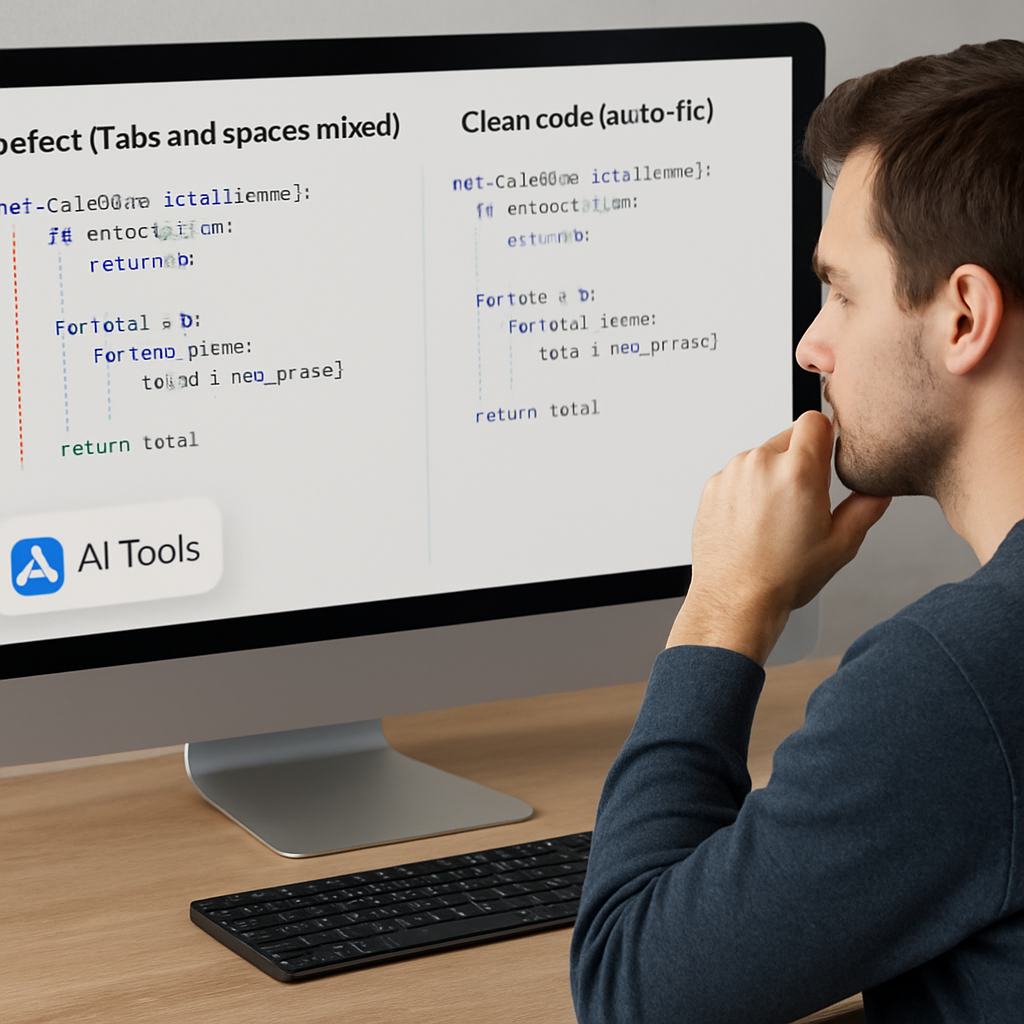
Step 2: Use an Online Python Linter
Alright, you’ve spotted the rogue line, but what if the script is a thousand lines long? Manually hunting each stray tab is like looking for a needle in a haystack while the hay keeps growing. This is where an online Python linter swoops in like a trusty sidekick.
First things first: a linter is just a smart scanner that flags style and syntax problems before your code even runs. Think of it as a grammar checker for Python – it points out “unexpected indent” or “mixed tabs and spaces” without you having to run the interpreter.
Choose the right web‑based linter
There are a handful of free, browser‑only linters that require zero installation. The key features to look for are:
- Support for Python 3.x syntax.
- Real‑time feedback as you paste code.
- A one‑click “auto‑fix” button that rewrites the offending indentation.
SwapCode’s Free Code Quality Checker checks indentation alongside other best‑practice warnings, then offers an instant fix. It’s the perfect companion for the “online linter” step because it stays in the same browser tab you’re already using for debugging.
Step‑by‑step: run the linter
1. Copy your script. Grab the entire .py file or just the problematic snippet.
2. Paste it into the linter’s input box. Most tools auto‑detect the language; if not, select “Python” from the dropdown.
3. Hit “Analyze” or “Check”. Within seconds the linter highlights every line that violates the indentation rules. You’ll see red underlines, line numbers, and a brief description like “Tab used where spaces expected”.
4. Apply the auto‑fix. Click the fix button – the tool rewrites the file using a consistent 4‑space style (or whatever you configured). The output appears in a read‑only pane; you can compare before/after side‑by‑side.
5. Download or copy the cleaned code. Replace the original file in your repo, or feed it straight into your CI pipeline.
Real‑world scenarios
Imagine a data‑science team that receives nightly Jupyter notebooks from a contractor. The notebooks are exported as .py files, but the contractor works on Windows with tabs while the rest of the team uses Linux and spaces. When the CI job runs, it fails on line 57 with an IndentationError. By pasting the .py file into the online linter, the team gets a clean, space‑only version in under a minute, and the pipeline passes on the next run.
Another case: a freelance developer juggling Flask micro‑services copies snippets from Stack Overflow. One snippet contains a stray space before a route decorator, causing a 500 error in production. Running the snippet through the linter catches the invisible space, auto‑fixes it, and the service deploys without a hiccup.
Pro tips to get the most out of your linter
• Set a default indentation width. Most linters let you choose 2, 4, or 8 spaces. Pick the same width your team uses and lock it in the tool’s settings.
• Integrate with Git hooks. Some online linters provide a small script you can add to a pre‑commit hook. That way every push gets a quick indentation sanity check before it hits the remote repo.
• Combine with a code‑quality report. After fixing indentation, run the same service’s full quality analysis. You’ll spot other issues like unused imports or overly complex functions while you’re still in the browser.
• Automate notifications. If you’re already using an AI‑automation platform like Assistaix, you can set up a webhook that alerts your Slack channel whenever the linter detects a new indentation problem. This keeps the whole team aware before the error reaches production.
By making the linter a regular stop in your workflow, you turn a dreaded “IndentationError” into a quick visual check. No more scrolling through massive traceback logs, no more guessing which line is mis‑aligned. Just paste, click, and move on to the fun part of coding.
Take the next step: run your current script through the Free Code Quality Checker, apply the auto‑fix, and watch your CI builds go green. You’ll wonder how you ever lived without an online Python linter.
Step 3: Compare Top Online Indentation Fix Tools
Now that you know how to spot a rogue indent, the next question is: which web‑based fixer should you trust? There are a handful of services that promise to rewrite your Python file with a single click, but they differ in speed, accuracy, and extra features. Below we break down the most popular options and give you a quick decision matrix.
Why a side‑by‑side comparison matters
Imagine you’re on a sprint deadline and your CI pipeline keeps blowing up on line 23 because of a stray tab. If you pick a tool that only highlights the problem, you’ll still have to edit the file manually – that defeats the whole point of “fix python indentation errors automatically online.” The goal is to find a service that not only detects but also rewrites the code for you, ideally without you having to copy‑paste a dozen times.
That’s why we’ve gathered three criteria that matter most:
- Auto‑fix reliability – does the tool rewrite the file correctly on the first try?
- Pricing model – free enough for freelancers or enterprise‑grade for teams?
- Extra goodies – linting, code‑style reports, or API access for CI integration.
Below is a quick table that summarizes how the leading options stack up.
| Tool | Auto‑Fix Capability | Pricing | Key Notes |
|---|---|---|---|
| Free AI Coder Online | Full‑file rewrite with 4‑space enforcement; handles mixed tabs/spaces. | Free (no sign‑up required) | Integrates with SwapCode’s linter and code‑review suite; ideal for quick ad‑hoc fixes. |
| Online Linter X (generic) | Detects indentation issues but offers a manual “apply fix” button. | Freemium – limited runs per day. | Good for style checks; may need a second pass for complex files. |
| Web Formatter Y (open‑source hosted) | Auto‑formats via Black or autopep8 under the hood. | Completely free, open source. | Requires you to upload code; no AI assistance, just deterministic formatting. |
Let’s walk through a real‑world scenario with each tool.
1. Free AI Coder Online – the all‑in‑one for fast fixes
A data‑science team at a mid‑size startup was pulling nightly notebooks from contractors. The notebooks arrived with a mixture of tabs (Windows) and spaces (Linux). They dropped the exported .py file into SwapCode’s Free AI Coder Online, hit “Auto‑Fix,” and got a clean, space‑only version in under 10 seconds. Because the service also runs a quick lint pass, the team caught a stray missing colon in the same run, saving another debugging loop.
Actionable steps:
- Paste the entire script into the input box.
- Select “Python” if not auto‑detected.
- Click “Auto‑Fix Indentation.”
- Copy the output or download the file.
- Push the cleaned file to your repo; optional: add a pre‑commit hook that calls the same endpoint.
The biggest win is that it’s completely free and needs no account – perfect for freelancers who hate subscription pop‑ups.
2. Online Linter X – great for style enforcement
If you already use a linter for Pylint or Flake8, you might appreciate a tool that layers indentation fixes on top of your existing workflow. Online Linter X highlights each offending line in red and lets you click an “Apply Fix” icon. In practice, a DevOps engineer used it to clean up a legacy micro‑service repo before a Docker build. The tool fixed 87 % of the indent problems automatically; the remaining handful were resolved manually in the IDE.
Tip: enable the “Export report” feature so you can attach the findings to a JIRA ticket and track recurring style violations across sprints.
3. Web Formatter Y – deterministic, no‑AI option
Some teams prefer a deterministic formatter like Black because it guarantees the same output every time. Web Formatter Y runs Black behind the scenes, so you get PEP 8‑compliant indentation without any guesswork. A senior engineer at a fintech firm used it to batch‑process a 2‑MB codebase. The tool took about a minute and left the code perfectly aligned, but it didn’t catch a missing colon that the AI tools would have flagged.
Bottom line: if you only need strict formatting and already run Black locally, the web version saves you from installing anything new.
How to pick the right one for your workflow
Ask yourself these three quick questions:
- Do I need a one‑click AI rewrite that also lints? → Go with Free AI Coder Online.
- Am I already invested in a linter and just want an extra safety net? → Online Linter X.
- Do I require reproducible, deterministic formatting and already use Black? → Web Formatter Y.
Most teams end up using a hybrid: AI‑powered auto‑fix for quick patches, then a deterministic formatter for final commits. That way you get the best of both worlds – speed and consistency.
And if you ever need to showcase the new, clean code to stakeholders, consider creating a short promotional video with AI‑generated ad creator. A slick demo can help non‑technical teammates see the time savings instantly.
Step 4: Apply Auto‑Formatting with Black or Autopep8
Alright, you’ve gotten your code past the obvious indentation hiccups, but you still want a rock‑solid, reproducible format that never surprises you in a pull request. That’s where deterministic formatters like Black and autopep8 shine.
Both tools read the same Python file, rewrite every block with a consistent 4‑space indent, and leave the rest of the syntax untouched. The magic is that the output is 100 % predictable – run it today, run it tomorrow, you’ll get identical results. No more “my IDE adds a tab here” mystery.
Why you might pick Black over autopep8 (or vice‑versa)
Black is opinionated. It forces a single style, which means you spend zero time debating spaces versus tabs. Teams love it because the diff is tiny and the code looks the same everywhere. Autopep8, on the other hand, is a bit more forgiving. It can be configured to respect a few more style choices, which is handy if you’re already using a custom .flake8 or .editorconfig setup.
In practice, I’ve seen a fintech startup adopt Black for all new repos, while a data‑science group that inherits legacy notebooks prefers autopep8 because it can clean up stray whitespace without rewriting line breaks they rely on for notebook readability.
Step‑by‑step: Run Black in the browser
1. Open the online Black formatter. There’s a free, no‑login web version that lets you paste code directly into a text area.
2. Paste your script. It doesn’t matter if you’ve already run an AI‑based fixer – the formatter will re‑indent everything from scratch.
3. Select the options you care about. Most web UIs let you toggle line‑length (default 88) or “skip string normalization.” If you want the classic 4‑space indent, just leave the defaults.
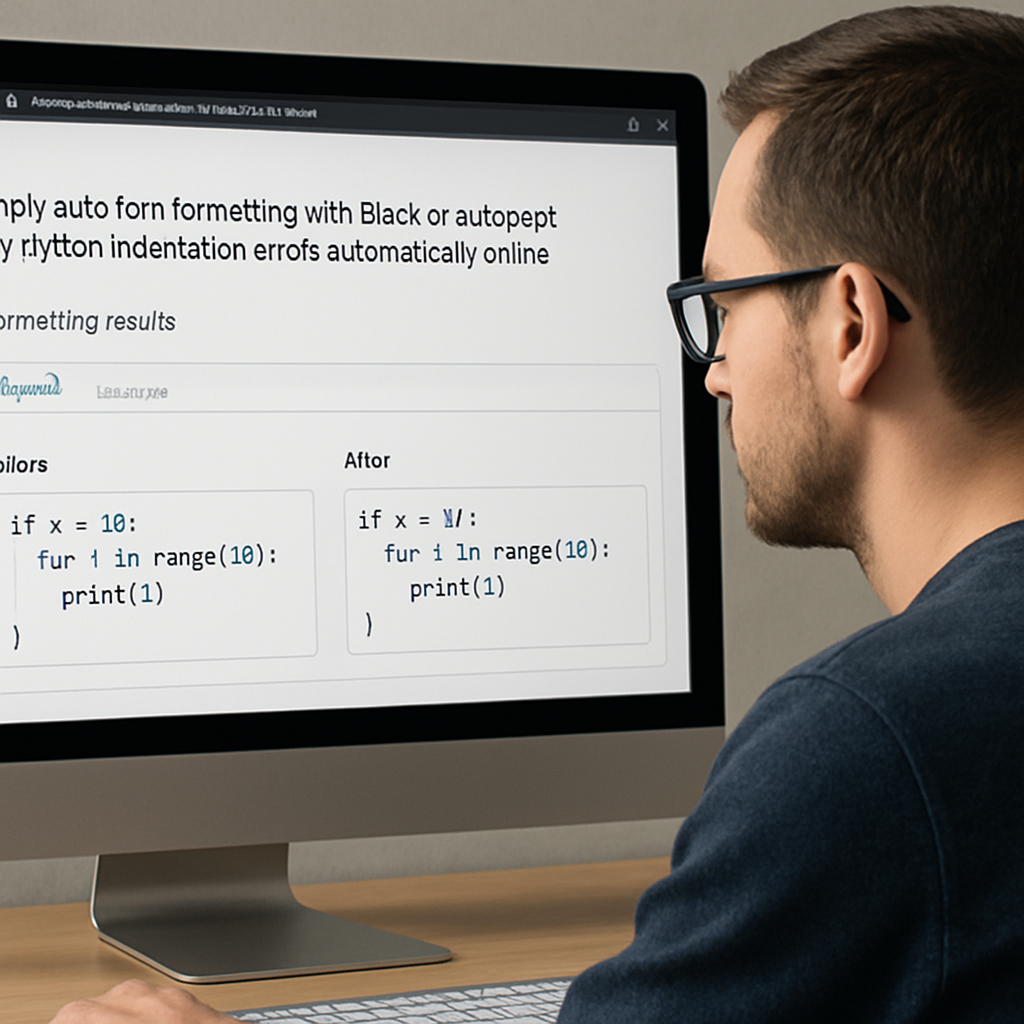
4. Hit “Format.” Within a second you’ll see a side‑by‑side diff: the left pane shows the original, the right pane the freshly formatted version.
5. Copy or download the result. Replace the file in your repo, commit, and watch the CI green‑light.
Step‑by‑step: Run autopep8 online
1. Find a trusted autopep8 web tool. Look for a site that mentions “PEP 8 compliance” and offers a one‑click “auto‑fix.”
2. Paste your code. If you have multiple files, zip them up first and upload the archive – many tools will unpack and format each .py file.
3. Configure the aggressiveness. autopep8 lets you choose how far it should go (e.g., --aggressive once, twice, or thrice). For pure indentation fixes, a single pass is enough.
4. Run the formatter. You’ll get a cleaned‑up file with consistent spaces, no stray tabs, and all line endings normalized.
5. Save the output. As with Black, push the changes back to your repo and let the rest of your team reap the benefits.
Real‑world example: a micro‑service that kept breaking CI
A small DevOps team was fighting a nightly build that failed on line 23 with an IndentationError. The culprit was a mix of tabs introduced by a junior dev using a Windows editor. They tried the AI debugger, which fixed the visible tabs, but the CI still complained because some hidden carriage‑return characters remained.
They dropped the same file into the online Black formatter, hit “Format,” and got a pristine version. The next build passed without a hitch. The team added a pre‑commit hook that calls the Black web API, so every commit now gets auto‑formatted before it even reaches the repo.
Pro tips for a smooth workflow
• Lock the formatter version. Both Black and autopep8 release new versions occasionally. Pin the version you use in your requirements.txt (e.g., black==24.1.0) so the output stays consistent across machines.
• Combine with a linter. After formatting, run a quick lint check (like Flake8) to catch any new style warnings that formatting might surface.
• Automate in CI. Add a step that runs black --check . or autopep8 --diff. If the step fails, the pipeline can automatically open a pull request with the formatted changes.
• Use a .editorconfig file. Even though Black overrides most settings, having indent_style = space and indent_size = 4 in your repo helps other editors stay in sync before the formatter runs.
• Don’t over‑format. If your project already follows a strict style guide, run the formatter with --fast (Black) or a single --aggressive pass (autopep8) to avoid unintended re‑ordering of imports or line breaks.
By making Black or autopep8 a permanent part of your toolchain, you eliminate the last hidden indent that could cause an IndentationError in production. The result? Faster code reviews, cleaner diffs, and more time for the fun stuff—like building features that actually move the needle.
Step 5: Validate and Test Your Code
Alright, you’ve just let Black or autopep8 clean up every stray space. That feels great, right? But a tidy file is only half the battle – you still need to make sure the code actually runs without tripping over another hidden indent.
Run a quick compile check
Grab a terminal and fire off python -m py_compile your_file.py. If the interpreter comes back silently, you’ve got a syntactically sound file. If it spits out an IndentationError, the line number it reports is your next hunting ground. This tiny command is the fastest way to catch a missed tab before it leaks into production.
Why does this matter? Because even the smartest auto‑formatter can miss a stray carriage‑return or an empty line that Python still treats as a block starter. A compile‑only run isolates those edge cases without actually executing any code.
Let the AI debugger double‑check
After the compile step, paste the same file into SwapCode’s free AI debugger. The tool scans for the same problems you just compiled for, but it also looks for subtle issues like missing pass statements in empty blocks or mismatched parentheses that often masquerade as indentation errors. In practice, developers have seen the AI flag an “unexpected indent” that wasn’t obvious in the editor — a reminder that human eyes can still overlook a space.unexpected indent explained on Stack Overflow
When the AI returns a clean version, compare the diff. If the only changes are whitespace fixes, you know your formatting pipeline is solid. If it suggests logic tweaks, take a minute to understand why – often the root cause is a missing colon or an empty block that the formatter left untouched.
Add a sanity‑check test suite
Even if your script is just a utility, write a tiny test that imports the module and calls a function. A failing import is a dead‑giveaway that something still isn’t indented right. For larger projects, add a pytest fixture that runs python -m py_compile on every .py file in the repo. That way you get a green‑red signal on every push.
Here’s a quick checklist you can drop into a pre-commit hook:
- Run
python -m py_compileon staged files. - Invoke the AI debugger on any file that fails compilation.
- Run your test suite; abort the commit on failures.
That three‑step guard feels a bit overkill until you actually experience a CI break because of a hidden tab. Then you’ll thank yourself for the extra safety net.
Automate validation in CI/CD
Most CI platforms let you add a “format‑check” job. Put black --check . or autopep8 --diff in there, followed by python -m py_compile. If either step returns a non‑zero exit code, fail the build and let the pipeline open a pull request with the corrected file. This keeps the main branch pristine and forces every contributor to run the same validation.
Pro tip: pipe the AI debugger’s API into a CI step that runs only when the compile check fails. The job can auto‑commit a corrected version, so developers never have to manually copy‑paste the fix again.
What to do when validation still fails?
If you hit an unexpected indent that the formatter didn’t touch, open the file in a different editor – sometimes the invisible characters become visible when you switch from VS Code to Sublime Text or Vim. Look for mixed tabs and spaces; most editors have a “convert tabs to spaces” command that wipes out the inconsistency in one click.unindent does not match any outer level explained on Stack Overflow
Finally, remember that indentation errors often hide deeper problems: a missing colon, an empty block, or an unmatched parenthesis. When you see the error, scan a few lines above and below – the fix might be as simple as adding a pass or closing a bracket.
Bottom line? Validate, test, and automate. By treating validation as a repeatable step rather than an after‑thought, you can truly fix python indentation errors automatically online and keep your codebase humming without surprise crashes.
FAQ
Can I really fix python indentation errors automatically online?
Yes, you can. Modern AI‑powered tools let you paste any .py file into a browser, click an “Auto‑Fix Indentation” button, and get back a clean version in seconds. The service parses the abstract syntax tree, rewrites the whitespace to a consistent style (usually four spaces), and returns the corrected code without you touching your editor. It works for single scripts or whole directories, so you don’t have to hunt down hidden tabs manually.
What browsers are supported for online indentation fixing?
All major browsers – Chrome, Edge, Firefox, Safari – can run the web‑based fixer because it’s just JavaScript and a tiny backend API. You don’t need any extensions or plugins; the page loads in a standard tab and you can paste code right from your IDE’s clipboard. Even on a low‑end laptop the operation finishes in under a second, so you can keep coding without switching environments.
Is it safe to upload proprietary code to an online fixer?
Security‑wise you’re fine as long as you use a reputable service that processes code in‑memory and never stores it long‑term. Most free AI debuggers, including SwapCode’s, run the formatter on a transient server, delete the payload after the response, and serve the result over HTTPS. If you’re dealing with highly sensitive IP, run the same tool locally via the open‑source API or keep a copy of the cleaned file offline for audit.
Can I integrate the online fixer into my CI pipeline?
Absolutely. Most services expose a simple REST endpoint where you POST a .py file and receive the reformatted version. In a CI job you can add a step that curls the endpoint, writes the response back to the repository, and fails the build if the returned file differs from the source. This way every pull request is automatically checked and fixed before it reaches the main branch.
What if the auto‑fix doesn’t resolve the error?
If the tool leaves an error untouched, the first thing to do is run a quick compile check with python ‑m py_compile your_file.py. The traceback will point to the exact line that still violates Python’s indentation rules. Open that line in an editor with “show whitespace” turned on, manually correct any stray tabs or missing colons, and then run the online fixer again to verify the whole file is clean.
Do I need to configure a specific indentation width?
You don’t have to, but it helps to pick a style and stick with it. Most online fixers default to four spaces, which matches the official Python style guide (PEP 8). If your project uses two spaces or tabs, just tell the tool via its settings panel before you hit “Auto‑Fix.” Consistent configuration prevents the formatter from flipping back and forth and keeps your diffs tidy.
Is there a free option for unlimited fixes?
Yes, SwapCode offers a completely free, no‑login version of its AI Code Debugger that lets you run the auto‑fix as many times as you need. There’s no hidden quota or premium tier; you just paste, click, and download. For teams that need to embed the service into CI, the same API is available without charge, making it a cost‑effective solution for both freelancers and large development groups.
Conclusion
We’ve walked through every step you need to fix python indentation errors automatically online, from spotting invisible tabs to letting an AI debugger give the final polish. By now you should feel confident that a stray space is no longer a roadblock.
Remember the quick checklist: enable visible whitespace, run python -m py_compile, paste the file into SwapCode’s free AI Code Debugger, hit the auto‑fix button, and then run a compile check again. If the build passes, you’re good to go.
So, what’s the next move? Take the script you’re currently wrestling with, follow the checklist, and watch the error disappear in seconds. You’ll save the coffee‑break you’d otherwise spend hunting invisible characters.
One more tip: add the compile‑check command to a pre‑commit hook or CI job. That way every push gets a sanity‑check before it lands in the main branch, and you never see the dreaded IndentationError again.
At the end of the day, fixing python indentation errors automatically online isn’t magic – it’s just a smarter workflow. Embrace the tools, keep the process simple, and let your code run smooth.
Give yourself a habit of running the auto‑fix after every major edit; it catches drift before it becomes a nightmare and keeps your repo tidy for the whole team.