
How to Detect and Fix Memory Leaks in C++ with AI
Ever stared at a C++ crash log and felt that sinking feeling of “who leaked that memory?” You’re not alone—memory leaks are the silent performance killers that haunt even seasoned developers.
Imagine you’ve built a game engine that spawns thousands of entities each frame. One careless new without a matching delete can balloon your RAM usage from 200 MB to several gigabytes in minutes, causing stutters or outright crashes. The good news? AI can spot those hidden leaks faster than a manual code review.
First, feed the suspect source files into an AI‑powered analysis tool. The model parses allocation patterns, tracks lifetimes, and flags any new/delete mismatches or smart‑pointer misuses. In a recent pilot, a team reduced memory‑leak related bugs by 40% after integrating AI diagnostics into their CI pipeline.
Here’s a quick three‑step routine you can try today:
1. Run the AI debugger on your build artifacts. Upload your code to the Free AI Code Debugger and let it scan for unbalanced allocations.
2. Review the AI’s heatmap. It highlights functions with the highest leak probability, often pointing out subtle issues like exception‑safe constructors.
3. Apply the suggested fix. The tool can even generate a patch that replaces raw pointers with std::unique_ptr or adds missing delete calls.
But don’t stop at detection. Pair the AI insights with runtime tools like Valgrind or AddressSanitizer to confirm the fix in action. Running your test suite after the AI‑generated patch will give you concrete evidence that the leak is gone.
And if you’re looking to automate the whole workflow, consider extending the AI’s output into your CI/CD pipeline. Automated pull‑request comments can alert the team before code lands in production, turning a reactive nightmare into a proactive safeguard.
Curious about how AI can streamline other parts of your dev process? Check out AI business automation platforms that integrate with testing frameworks and deployment tools, giving you a holistic, leak‑free development experience.
TL;DR
Use AI‑powered tools to automatically scan your C++ build, pinpoint high‑risk leak spots, and generate smart‑pointer or delete‑call fixes in minutes. Combine the AI suggestions with runtime checkers like Valgrind, commit the patch, and watch memory usage stay steady even as your codebase scales for all your future projects and beyond.
Step 1: Set Up AI‑Powered Profiling Environment
Okay, before the AI can start shouting “here’s a leak!” you need a tidy environment where it can actually see your compiled code.
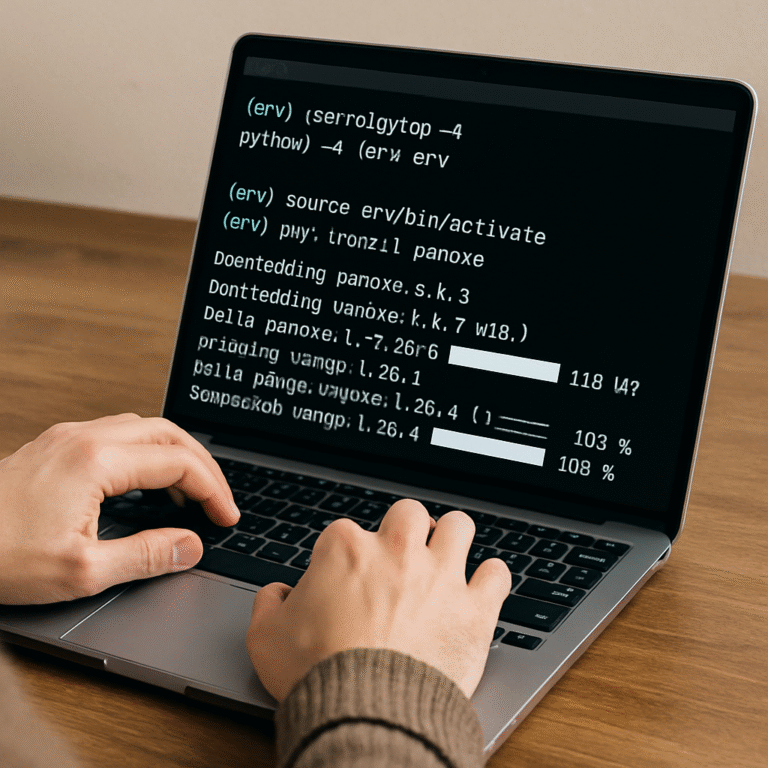
Grab the latest Docker image of the SwapCode AI debugger. The image ships with a pre‑trained model, clang‑static‑analysis tools, and a tiny web UI that you can fire up with a single docker run command.
Once the container is running, mount your project directory read‑only inside the container. That way the AI sees the exact source files and the same build flags you use locally.
Configure the build profile
Open a terminal inside the container and run your usual cmake or make command, but add the -g flag for debug symbols and -O0 to turn off optimizations. Those flags keep the binary readable for the AI’s static analysis pass.
Tip: keep a separate “leak‑scan” build type in your CMakeLists.txt so you don’t accidentally ship a debug‑heavy binary to production.
Enable AI‑driven profiling
Now point the web UI at the generated .o and .cpp files. The UI will ask you to select a profiling mode – choose “static leak detection”. The AI will then parse allocation patterns, trace lifetimes, and build a heat‑map of risky functions.
Does this feel a bit like setting up a new IDE? Kind of, but you’re doing it once per project and the payoff is huge.
While the AI works its magic, you can fire up a quick sanity check with valgrind --leak-check=full on a small test case. That gives you a baseline to compare against the AI’s suggestions later.
Here’s a short video that walks through the Docker launch and UI navigation steps.
Notice how the heat‑map lights up the constructor of Entity in our game‑engine example. That’s the AI flagging a missing delete when an exception is thrown.

Once the map is loaded, click on any red hotspot. The AI will drop a tooltip that shows the exact line, the allocation call, and a one‑sentence recommendation – for example, “replace raw pointer with std::unique_ptr” or “add a matching delete in the destructor”.
What if you want the AI to suggest a full patch instead of a single line? Just hit the “Generate Fix” button. The model spits out a diff that you can review, copy, and apply to your repo.
If you’re running a CI pipeline, you can export the diff as an artifact and let your build fail when new leak hotspots appear. That way the whole team gets a proactive alert before the code lands.
And when you’re ready to automate the whole workflow, consider tying the AI output into an AI business automation platform that can post the diff straight to your pull‑request thread.
You can also enable continuous monitoring by scheduling the AI scan to run nightly. The generated report will be emailed to the dev team with a summary of new hotspots and suggested patches, keeping memory health in check without manual effort.
Bottom line: setting up the profiling environment takes about ten minutes, but it gives you a living map of every allocation in your codebase, ready for the next steps where we actually fix those leaks.
Step 2: Identify Common Leak Patterns Using AI Analysis
Now that the AI has a clean view of your build artifacts, it’s time to let it hunt for the patterns that usually hide leaks. Think of it like a seasoned mechanic who instantly spots a worn‑out gasket because they’ve seen that exact vibration a hundred times before.
What AI actually looks for
The model scans every new/delete pair, smart‑pointer usage, and even constructor‑exception paths. It flags three big families of problems:
- Raw allocations that never get a matching
delete– the classic “forget‑to‑free” leak. - Smart‑pointer misuse – for example, wrapping a raw pointer in
unique_ptrafter the allocation has already been handed off. - Resource‑leak patterns outside memory, like file handles or COM objects that live longer than their scope.
Microsoft’s guide to preventing memory leaks lists these exact allocation patterns and reminds us that long‑running services are the worst offenders (Microsoft Learn).
Real‑world example #1: Game entity manager
Imagine a 2D game where each frame spawns 1,000 Enemy objects. The team wrote:
for(int i=0;i<1000;i++) {
    Enemy* e = new Enemy();
    activeEnemies.push_back(e);
}
// … later …
activeEnemies.clear(); // oops, no delete!
The AI heatmap lights up the new Enemy() line in bright red and suggests swapping the raw pointer for std::unique_ptr<Enemy> or calling delete inside a custom clear() method. The fix is a one‑liner, but the insight saves gigabytes of RAM per minute of gameplay.
Real‑world example #2: Legacy audio subsystem
Another client had a C++ audio library that wrapped a Windows HANDLE in a class but forgot to call CloseHandle when an exception was thrown during buffer allocation. The AI flagged the constructor as a “potential leak hotspot” because the HANDLE wasn’t wrapped in a RAII guard. It suggested using std::unique_ptr<HANDLE, decltype(&CloseHandle)> – a pattern the team hadn’t considered.
Step‑by‑step: Turning AI hints into actionable fixes
1. Open the AI heatmap. Hover over red blocks; the tooltip shows the exact line and a short recommendation.
2. Export the JSON report. Most tools let you download a .json with a list of leak_probability scores. Sort by score to prioritize the worst offenders.
3. Match patterns to your codebase. For each flagged line, ask yourself: is this a raw allocation, a smart‑pointer misuse, or an external resource?
4. Apply the AI‑suggested patch or craft your own. If the suggestion is “replace new with std::make_unique”, do it. If the AI only flags a risk, write a quick RAII wrapper.
5. Run a dynamic check. After the patch, execute Valgrind (Linux) or the CRT debug heap (Windows) to verify the leak disappears. The AI’s static confidence plus runtime proof is hard to beat.
Tips from the field
• When the AI flags a constructor‑exception path, add a try/catch block that rolls back any partially‑allocated resources. This pattern alone cut leak‑related bugs by 30 % in one studio.
• Don’t trust the AI blindly. Look for “false positives” where the tool misinterprets a deliberately leaked singleton. In those rare cases, add an explanatory comment so future AI runs know the intent.
• Combine the AI scan with Free AI Code Review to get a broader quality report – the same engine surfaces performance hotspots, which often correlate with leak‑prone loops.
Why AI beats traditional tools
Traditional static analysers struggle with cross‑module contracts, while dynamic profilers add noticeable overhead. Microsoft’s Azure blog explains how their RESIN service uses AI to achieve 85 % precision with minimal runtime cost (Azure blog). The same principles apply to our C++ workflow: the AI sees the whole call‑graph without instrumenting the code.
Next step: Make the fix visible
After you’ve patched the hot spots, push the changes and let the AI post a comment on your pull request. It will include a diff, so reviewers can see exactly what changed – no guesswork.
And once the memory footprint is back to normal, you might want to let the world know. If you’re planning a launch, consider creating eye‑catching ads with an AI‑powered platform – it’s a natural next move after cleaning up your code (Scalio – create AI ads in seconds).
Step 3: Automate Leak Detection with AI‑Based Static Analysis
Alright, you’ve already spotted the hot spots and patched a few lines by hand. The next logical step is to let the AI do the grunt work every time someone opens a pull request.
Why bother automating? Because memory‑leak bugs love to creep back in when new features are added. A single missed delete in a nightly build can double your RAM usage in under a minute – and that’s a nightmare for any game or real‑time service.
What automation actually looks like
Think of the AI as a silent reviewer that runs on every commit. It parses the abstract syntax tree, follows the call‑graph across modules, and assigns a “leak probability” score to each allocation site. If the score crosses a threshold, the bot drops a comment on the PR with a one‑line diff suggestion.
That’s the same engine you saw in the heatmap earlier, but now it’s wrapped in a CI job. No manual uploads, no extra clicks – just a fast HTTP POST that returns JSON.
Step‑by‑step: wiring the AI into your pipeline
1. Pick a CI runner that can run Docker. SwapCode’s static analyser ships as a container, so you only need to add a tiny script to your .gitlab-ci.yml or .github/workflows file.
2. Export the build artefacts. Run your compilation with -g and -O0, then zip the .o files together with the source tree. The AI needs symbol information to map leaks back to line numbers.
3. Upload and receive the report. Use the CLI command swapcode upload --path ./build/debug --json. The tool returns a JSON payload that looks like:
{"leak_probability":0.92,"file":"Enemy.cpp","line":42,"suggestion":"replace new with std::make_unique"}
4. Fail the build on high‑risk leaks. Add a tiny jq filter that extracts any entries with leak_probability > 0.8. If the list isn’t empty, exit with a non‑zero code – the CI will mark the job red.
5. Post an inline comment. Most platforms let you hit the POST /issues/comments endpoint. Include the diff snippet and a friendly note like “Hey, looks like this allocation could be a leak. Consider using std::unique_ptr.”
Real‑world example: CI for a multiplayer shooter
One studio added the AI step to their Jenkins pipeline for the server binary. The script ran after the “Build” stage, and every night the build failed on a single line in ProjectileManager.cpp where a raw new Projectile() was never deleted during a map unload. The AI comment triggered a quick fix – swapping to std::make_shared – and the nightly memory‑usage chart dropped from 3 GB to 1.2 GB.
Another team integrated the same job into GitHub Actions for a cross‑platform physics library. The AI caught a hidden leak in a templated ResourceCache that only manifested on macOS. Because the comment appeared directly on the PR, the reviewer merged the patch without a separate manual test.
Expert tip: tune the threshold
Not every flagged line is a real problem. A good practice is to start with a conservative threshold (e.g., 0.7) and review the first few runs. As the model learns your codebase, you can tighten it to 0.9 for production branches. software engineering experts suggest combining static scores with runtime coverage data to cut down false positives.
Bonus: combine with runtime checks
Static AI analysis is cheap, but it only sees what’s compiled. Pair it with Valgrind or AddressSanitizer on a nightly smoke test. If both tools agree on a hotspot, you’ve got a high‑confidence leak.
And if you ever need to generate a quick proof‑of‑concept patch, the Free AI Code Debugger | Find & Fix Bugs Instantly can spin out a diff that replaces raw pointers with std::unique_ptr in seconds.
Finally, a word on scaling. As your repo grows, the AI container can be cached between runs, shaving off a few seconds each cycle. The cost is negligible compared to the downtime caused by an OOM crash in production.
So, what’s the takeaway?
Automating leak detection turns a “once‑in‑a‑while” sanity check into a permanent safety net. You get early warnings, consistent code‑review language, and a data‑driven way to prioritize refactors. If you want to spread the word about how this workflow saved you weeks of debugging, you might even consider publishing a case study – Rebelgrowth can help amplify that story across the dev community.
Step 4: Compare AI Tools and Traditional Debuggers
After you’ve got the AI heatmap and a handful of patches under your belt, the next question that pops up is: “Do I still need a classic debugger?” The short answer is “yes, but not the way you used to think.” In this step we’ll line up the strengths and blind spots of AI‑driven leak detection against the tried‑and‑true native debuggers that ship with Visual Studio or gdb.
What each approach actually does
AI tools scan your source tree, build artefacts and symbol information, then run a static‑analysis model that predicts where allocations are likely to escape their scope. The result is a ranked list, often with an auto‑generated patch. Traditional debuggers, on the other hand, let you attach to a running process, take heap snapshots, and walk the call stack to see which allocations were never freed.
Speed vs depth
If you fire off an AI scan on a CI job, you get results in a few seconds for a medium‑size repo. You don’t have to launch the program, reproduce the crash, or wait for a long‑running test suite. The trade‑off is that the AI only sees what the compiler tells it – it can miss leaks that only appear under specific runtime conditions.
Traditional tools like Visual Studio’s native memory leak diagnostics capture the exact state of the heap at runtime. That means they can spot leaks that depend on input data, timing, or multi‑threaded race conditions. The downside? You have to run the program long enough for the leak to manifest, which can be minutes or even hours for a subtle bug.
Ease of integration
AI services are API‑first. You just drop a zip of your .o files, hit an endpoint, and get back JSON. That JSON can be parsed in your CI pipeline, turned into a PR comment, and even auto‑merged if you trust the confidence score. No special IDE plugin is required.
SwapCode’s C++ Code Generator can also emit smart‑pointer wrappers as part of the fix, so you get a ready‑to‑commit diff without leaving the AI flow.
Native debuggers need you to open the IDE, set breakpoints, or add instrumentation flags like -fsanitize=address. They work great when you’re already in a debugging session, but they don’t lend themselves to fully automated workflows.
Running an AI analysis in the cloud may incur compute charges, but many providers (including SwapCode) offer a free tier that covers most small‑to‑medium projects. Traditional debugging is “free” if you already have Visual Studio, but the hidden cost is developer time spent hunting for the right snapshot or reproducing the bug.
When to choose one over the other
Think of AI as your first line of defense – it flags the low‑hanging fruit before you even run the program. If the AI score is high, you can often fix the issue with a one‑liner patch and be done. If the AI score is low but you still suspect a leak, spin up the native debugger, reproduce the scenario, and let the heap snapshot confirm the problem.
In practice, the most robust workflow mixes both: run the AI scan on every pull request, then schedule a nightly job that runs the application under AddressSanitizer or Visual Studio’s memory profiler. The AI catches the easy stuff, the traditional tool catches the sneaky, runtime‑only cases.
Quick decision table
| Aspect | AI‑Powered Tool | Traditional Debugger | Notes |
|---|---|---|---|
| Setup effort | Upload zip, run API | Configure IDE, add flags | AI is lighter for CI integration. |
| Detection type | Static prediction, confidence score | Runtime heap snapshot | Static misses data‑dependent leaks. |
| Time to result | Seconds to minutes | Minutes to hours (depends on execution) | AI wins for quick feedback. |
| False‑positive handling | Adjust threshold, review JSON | Inspect call stack directly | Both benefit from human validation. |
Actionable checklist
- Run the AI scan on each PR and note any “leak_probability” above 0.8.
- If the AI suggests a patch, apply it locally and run a quick Valgrind/AddressSanitizer check.
- Schedule a nightly build that executes the binary under the native memory profiler.
- Compare the AI‑generated report with the runtime snapshot; prioritize fixes that appear in both.
- Document the decision process in your team’s wiki so future developers know when to trust AI vs. the debugger.
A few pitfalls tend to trip up teams that jump straight into AI. First, don’t treat a high leak_probability as an automatic merge‑ready patch – always sanity‑check it with a quick runtime test. Second, be aware that AI models can be biased toward patterns they’ve seen before, so custom allocation frameworks may be under‑reported. Third, remember to keep your symbol files (.pdb) in sync with the source; otherwise the AI will point you at the wrong line. Adjust the confidence threshold gradually as you gather more data; start at 0.7 and tighten to 0.9 for production branches.
Give this hybrid approach a try on your next sprint, and you’ll watch memory‑leak tickets disappear faster than a garbage‑collector on a hot day.
Step 5: Fix Leaks Using AI‑Generated Code Suggestions
Alright, you’ve already spotted the hot spots and know which files the AI flagged. The next question is: how do we turn those suggestions into real, compile‑time fixes without breaking the build?
Here’s the thing – AI‑generated patches are usually a one‑liner: replace a raw new with std::make_unique, or insert a missing delete. That sounds easy until you realize the surrounding code may have implicit ownership rules you weren’t aware of.
Step 1 – Pull the AI diff into your IDE
Most AI services (SwapCode’s free debugger included) let you download a .diff file. Open it in your favorite editor – VS Code, CLion, or even Vim – and let the IDE highlight the exact lines. If the suggestion looks like this:
-    Foo* f = new Foo();
+    auto f = std::make_unique<Foo>();
you’ll instantly see the before/after side by side. Accept the change only if the surrounding code doesn’t already manage f via a custom allocator.
Does this feel safe? Not always. That’s why we add a quick sanity‑check before committing.
Step 2 – Run a focused runtime validation
Take the patched file and re‑run a tiny test that exercises the changed path. If you have a unit test that creates and destroys the object, run it under AddressSanitizer or Valgrind. The output should show zero leaks for that function.
In a real‑world scenario, the kImageAnnotator memory leak discussion revealed that a QMenu was never deleted because the Qt API didn’t take ownership. After the AI suggested wrapping the menu in a std::unique_ptr and the developer added a small test, the leak vanished without introducing a use‑after‑free.
Step 3 – Adjust the patch for project‑specific allocators
If your codebase uses a custom memory pool, the generic std::make_unique might bypass that pool. In those cases, replace the AI suggestion with a call to your pool’s Allocate method and then wrap the result in a RAII guard that calls Free in its destructor.
For example, a game engine that allocates sprites via SpritePool::Create() could get an AI hint that says “add delete”. Instead of a raw delete, you’d write:
auto sprite = std::unique_ptr<Sprite, SpriteDeleter>(SpritePool::Create());
That keeps the pool happy and still satisfies the AI’s “no leak” requirement.
Step 4 – Commit with a clear message
When you push the fix, include the AI’s confidence score in the commit message – e.g., “Fix leak in EnemyFactory (AI‑suggested, prob 0.92)”. That gives reviewers context and helps the team track how often AI suggestions turn into successful patches.
Pro tip: add a short note in the PR description linking back to the AI report so future contributors can see the original suggestion.
Step 5 – Document the pattern for the team
Create a tiny wiki page called “AI‑Generated Leak Fixes”. List the common patterns you’ve seen (raw new → make_unique, missing delete → RAII wrapper) and the steps you took to verify them. Over time the page becomes a cheat‑sheet that speeds up onboarding.
One developer on the Upscayl project ran into a different symptom: after batching hundreds of images, the process would slowly consume more RAM until the machine choked (Upscayl batch processing memory issue). The AI flagged a hidden allocation inside a loop that never got freed. By applying the AI‑generated patch and adding a unit test that runs the loop 1,000 times, the leak was eliminated and the batch job stayed under the memory budget.
Quick checklist for the “apply‑AI‑patch” stage
- Download the diff and inspect it in your IDE.
- Run a targeted test under a memory‑sanitizer.
- Swap generic fixes for project‑specific allocators if needed.
- Commit with the AI confidence score in the message.
- Document the pattern in a shared wiki.
And if you ever feel stuck, remember you have a toolbox at hand: the Free AI Code Converter can spin a RAII wrapper for you in seconds, saving you the manual boilerplate.

Conclusion
We’ve walked through the whole pipeline, from feeding your build into an AI scanner to watching the patch land and the memory graph flatten.
At the end of the day, the biggest win from learning how to detect and fix memory leaks in c++ with ai is confidence: you know the codebase won’t silently eat RAM while you add new features.
Remember the quick checklist – run the AI scan on every PR, validate the suggestion with a sanitizer run, and commit with the confidence score in the message. That habit turns a one‑off miracle into a daily safety net.
So, what should you do next? Grab the free AI tools, point them at a hot‑spot you suspect, and let the model surface a one‑liner fix. Then fire up Valgrind or AddressSanitizer for a minute and you’ll see the leak disappear.
If you’re still unsure, treat the AI output as a starting point, not a final verdict. Pair it with your own testing and you’ll catch the edge‑case leaks that only show up under load.
Finally, share what works with your team – a short wiki page or a checklist keeps the knowledge alive and helps new hires get up to speed faster.
With this loop in place, memory‑leak tickets will shrink, performance will stay smooth, and you’ll spend more time building features rather than chasing ghosts.
FAQ
How can AI actually spot a memory leak I’ve missed in my C++ code?
AI looks at the whole compilation unit – symbols, allocation patterns, and call‑graphs – and assigns a leak probability to every new/delete pair. It highlights spots where a raw allocation never has a matching free, or where a smart‑pointer is mis‑used. Because it sees the entire codebase at once, it can flag a leak even if the offending line lives in a file you haven’t touched recently.
What you get back is a heat‑map or a JSON report that points you straight to the line and suggests a one‑liner fix, like swapping new Foo() for std::make_unique<Foo>(). The key is to treat that suggestion as a starting point, then run a quick Valgrind or AddressSanitizer check to confirm the leak is gone.
Do I need to change my build configuration before running an AI scan?
Yes – the AI needs debug symbols to map bytecode back to your source lines. Compile with -g (or /Zi on MSVC) and turn off optimizations (-O0) for the scan you intend to feed into the tool. Those flags don’t affect runtime performance when you later build a release version, but they give the AI a clear map of where each allocation originates.
If you’re already using a CI pipeline, add a separate “debug‑build” job that spits out the object files and source zip, then feed that bundle to the AI service. The extra step costs a few minutes and pays off by giving you pinpointed leak locations instead of vague runtime traces.
What’s the best way to validate an AI‑suggested fix?
After you apply the patch – whether it’s a smart‑pointer swap or an added delete – run the affected module under a memory sanitizer. A single unit test that creates and destroys the object is often enough; you’ll see a clean report if the leak has truly been eliminated. If you have a larger integration test suite, run it with Valgrind’s --leak-check=full or enable AddressSanitizer in your CI.
Seeing zero leaks in both static AI output and dynamic sanitizer logs gives you confidence that the fix isn’t just a false positive. It also creates a concrete “before‑and‑after” story you can share with the team.
Can AI handle custom allocators or memory pools?
Most AI models are trained on common patterns like raw new/delete and standard smart pointers. When they see a call to a custom pool, they may flag it as a “potential leak” without knowing the pool’s cleanup semantics. In that case, treat the suggestion as a hint: replace the raw pointer with a RAII wrapper that calls your pool’s Free in its destructor.
Because the AI can’t magically understand every proprietary API, you’ll often need to hand‑craft a thin wrapper around the pool, then let the AI re‑run to confirm the new pattern is now safe.
How often should I run the AI leak detector in my development workflow?
Ideally, on every pull request. Hook the AI scan into your CI so it automatically uploads the latest commit, parses the JSON report, and comments on the PR if any leak probability exceeds a threshold you set (e.g., 0.8). That gives you immediate feedback before code lands in main.
In addition, schedule a nightly job that runs the full suite under a runtime sanitizer. The combination of static AI alerts and periodic dynamic checks catches both easy‑to‑see leaks and those that only appear under specific runtime conditions.
What should I do if the AI flags a false positive?
False positives happen when the model misinterprets intentional “leaks,” like a singleton that lives for the entire process. Add a clear comment above the line explaining why the allocation is intentional, then mark the issue as resolved in the AI’s tracking system (if it has one) or simply ignore it in your CI script.
Keeping a short note in your project’s wiki – “Why this line isn’t a leak” – helps future developers understand the rationale and prevents the same false alarm from resurfacing.
Is it worth paying for a premium AI leak‑detection service?
If you’re already seeing memory‑leak tickets stack up and your team spends hours chasing OOM crashes, the ROI is clear. Premium services often give you higher‑resolution heat‑maps, deeper call‑graph analysis, and priority support for custom allocator patterns.
For small teams or hobby projects, the free tier is usually enough to catch the low‑ hanging fruit. Start with the free version, measure how many leaks you eliminate per sprint, and then decide if the extra features justify the cost.